


YouTube Kids was supposed to solve the problem. For many families, it hasn’t. Here are the real alternatives – and what each one actually does.
Parents searching for a YouTube Kids alternative are usually at a specific point in their thinking. They’ve tried YouTube Kids, found it either too restrictive or not restrictive enough, and are looking for something that actually fits how their family uses YouTube.
The options below cover the full range – from broad parental control apps to YouTube-specific tools. Each has genuine strengths. Each has real limitations. The goal here is an honest account of all of them, not a ranking designed to funnel you towards one answer.
Google Family Link (free)
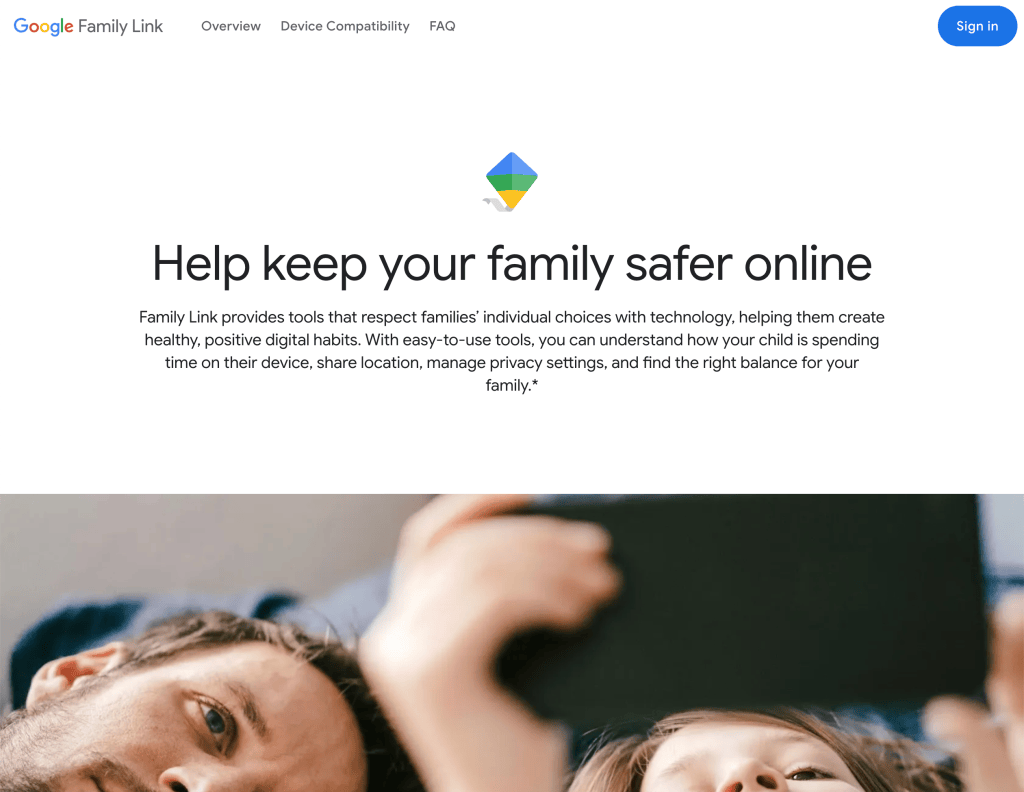
Google’s own parental supervision tool is the natural starting point for Android households and the most common first step for parents who haven’t yet tried a third-party solution.
What it does well: Family Link lets you approve or block apps, set screen time schedules, and get a basic view of your child’s activity. It’s free, reasonably well-integrated with Android devices, and requires no additional software.
The catch for YouTube: Family Link doesn’t give you channel-level control over YouTube. You can block YouTube entirely, or allow it with broad content level settings – but you can’t say “my child can watch these specific channels and nothing else.” The recommendation algorithm still runs. Autoplay is still on by default. And the content filtering is the same Restricted Mode that YouTube itself offers, which is inconsistent. For a detailed comparison of YouTube Kids and the main app, see our full breakdown here.
Best for: Families wanting basic device management and screen time controls, particularly on Android.
Bark (~£11/month)
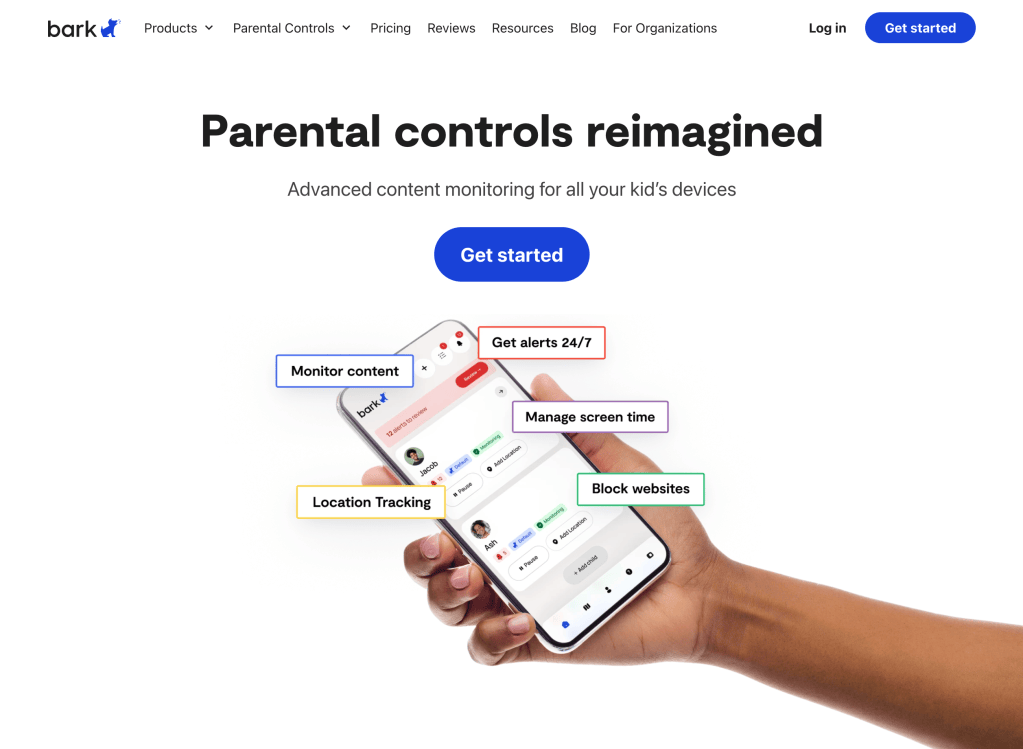
Bark takes a philosophically different approach to most parental control tools. Rather than blocking or restricting content in advance, it monitors your child’s activity across 30+ platforms and sends alerts when it detects something concerning – cyberbullying, predatory behaviour, mental health warning signs.
What it does well: Bark’s monitoring is genuinely sophisticated. It uses AI to scan messages, images, and social media activity and has built a strong reputation for catching problems that parents would otherwise miss entirely.
The catch for YouTube: Bark monitors YouTube searches and comments but does not filter or block YouTube video content. It is an alert-after-the-fact tool, not a prevention tool. By the time Bark notifies you, your child has already seen the content. It also can’t set daily time limits per app – it’s all-or-nothing scheduling rather than granular control.
Best for: Families with older children (10+) where monitoring and early intervention matters more than content restriction. Particularly strong for parents worried about grooming, cyberbullying, or self-harm content across platforms.
Qustodio (from ~£46/year)
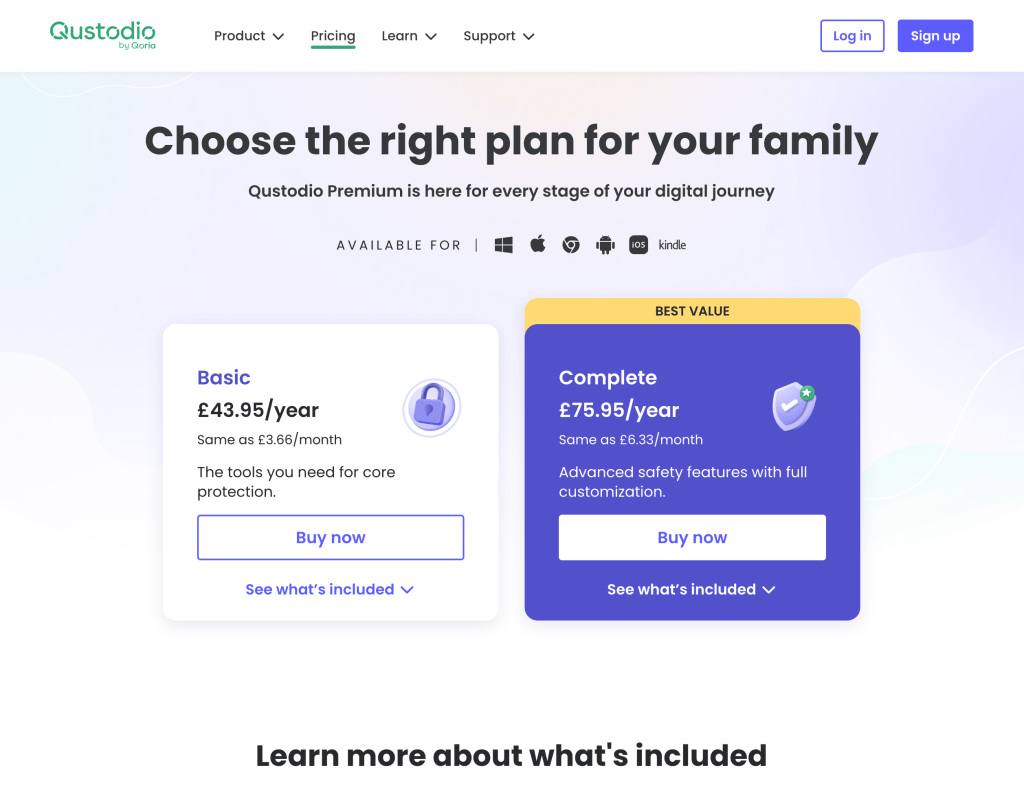
Qustodio is one of the most comprehensive all-in-one parental control apps available – cross-platform, detailed, and with strong reporting. It covers web filtering, screen time management, location tracking, and app controls across both iOS and Android.
What it does well: The breadth of Qustodio’s coverage is its main strength. One subscription manages multiple devices across different platforms, and the dashboard gives parents a genuinely detailed view of what their children are doing online.
The catch for YouTube: Despite marketing “YouTube monitoring” as a feature, Qustodio’s YouTube control amounts to enabling YouTube’s Restricted Mode – the same filter you can turn on yourself for free in YouTube’s settings. It does not offer channel-level whitelisting. You cannot specify which channels your child can access. And Restricted Mode is inconsistent, with documented cases of inappropriate content passing through while legitimate educational content gets blocked.
Best for: Families who want broad cross-platform oversight – web filtering, screen time, location, and social monitoring – and are comfortable with the YouTube limitation. For a comparison of the free built-in tools, see our Family Link vs Apple Screen Time guide.
WhitelistVideo ($6.99–$14.99/month per child)

WhitelistVideo is the closest thing to a direct competitor to Streamu, built around the same core idea: rather than filtering YouTube’s content pool, you specify exactly which channels are allowed and block everything else.
What it does well: It does the core job well. You build a whitelist of approved channels, and your child can only access those channels. The algorithm can’t recommend anything outside your list. It works across devices and is genuinely difficult to bypass.
The catch: The pricing model is per child, which makes costs escalate quickly. A family with two children on the Premium plan ($14.99/month per child) is paying $29.98/month – and even that tier caps approved channels at 100 per child. There’s no unlimited channel option at any price point. The interface is also primarily functional rather than designed with the child’s viewing experience in mind.
Best for: Families with a single child whose primary concern is YouTube specifically, who want a channel whitelisting solution and are comfortable combining it with another tool for broader device management.
Streamu (joining the waitlist now)
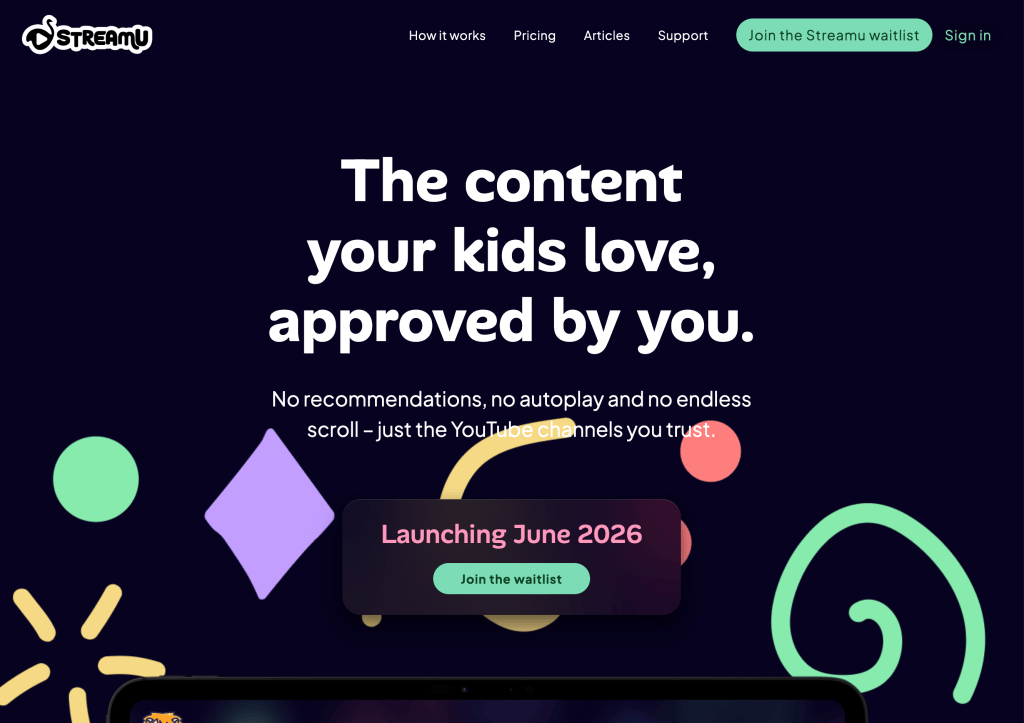
Streamu is built around the same whitelisting principle as WhitelistVideo – parents choose specific YouTube channels, and nothing outside that list is accessible – but with a single flat family price, no channel caps, and a greater focus on the quality of the child’s viewing experience alongside the safety of it.
What it does well: Autoplay is off by default. There’s no search bar, no recommendation feed, and no path from an approved channel into the broader YouTube ecosystem. One subscription covers up to four children, with no limit on how many channels you whitelist per child – you’re not counting channels or paying more as your family grows. The interface is designed to be genuinely usable by children, not just a restricted version of something else.
The catch: Streamu is currently in pre-launch. You can join the waitlist now, but the app isn’t yet available in the App Store or Google Play.
Best for: Families with more than one child who want YouTube channel whitelisting without per-child costs or channel caps – and who share the view that the algorithm, not just the content, is the problem worth solving.
Which is right for your family?
The honest answer depends on what problem you’re actually trying to solve.
If your child is young (under 8) and you primarily want to reduce exposure to inappropriate content with minimal setup, YouTube Kids – for all its flaws – remains the lowest-friction option. For a step-by-step guide to configuring it properly, see our guide to setting up YouTube for kids without YouTube Kids.
If you want broad device management across multiple platforms and YouTube is only part of your concern, Qustodio gives the most comprehensive coverage, with the understanding that its YouTube controls are limited.
If you have older children and your concern is less about what they watch and more about who they’re talking to and what they’re being exposed to on social media, Bark is the strongest monitoring tool available.
If YouTube is the primary concern and you want channel-level control, WhitelistVideo or Streamu are the only tools that actually deliver that. The difference between them comes down to how you’re set up: WhitelistVideo’s per-child pricing and 100-channel cap makes it expensive and limiting for larger families, while Streamu covers up to four children with unlimited channels on a single subscription.
No single tool solves every problem. But understanding what each option actually does – rather than what its marketing suggests it does – at least means the choice is an informed one.
Built for conscious parents
Streamu lets you build your child’s YouTube experience from the ground up – curating the channels you trust, blocking everything else, and removing autoplay entirely. Not a filter on top of YouTube. A different experience altogether.
Join a growing community of conscious parents taking back control.

Leave a Reply