

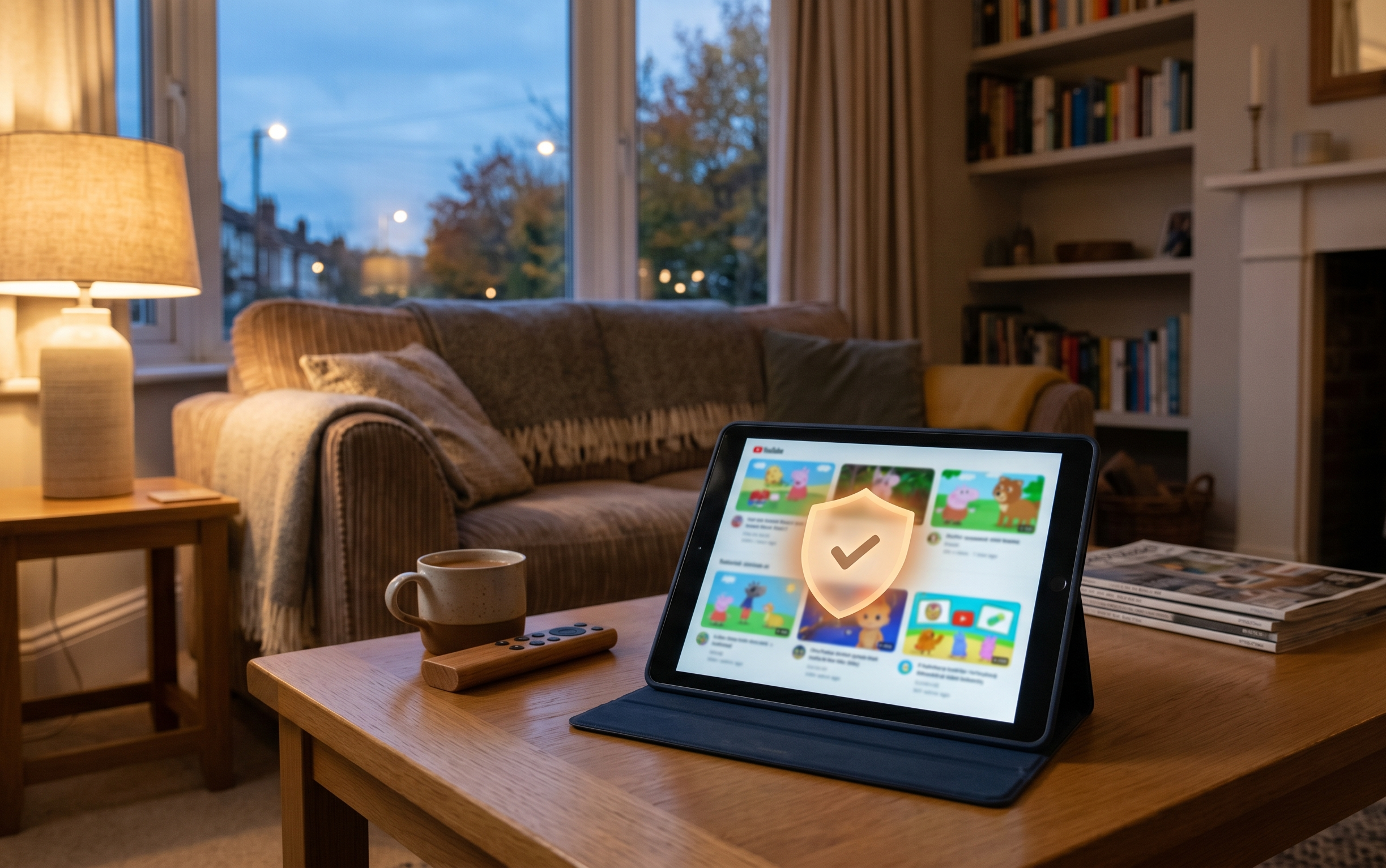
Every approach to making YouTube safer for children has real merits. Every approach also has a limitation worth knowing about before you commit to it.
There’s no shortage of advice about making YouTube safer for children. The problem is that most of it glosses over what each option actually doesn’t do – which is usually the most important part. This guide covers five genuinely useful approaches, honestly.
1. Switch to YouTube Kids
YouTube Kids is Google’s purpose-built alternative to the main app, with a simplified interface, age-based content profiles, and no comments. It’s the most common first step for parents of younger children and the lowest-friction option available.
What it does well: Reduces exposure to clearly adult content. Allows parents to disable search entirely, limiting discovery to curated categories. Includes a watch timer parents can set in advance.
The catch: YouTube Kids still runs on the same recommendation algorithm as the main app. The content pool is filtered; the engine deciding what plays next is not. Autoplay is on by default. And the filter is imperfect – inappropriate content has slipped through consistently since the platform launched. For a detailed comparison of YouTube Kids versus the main app, see our full breakdown here.
Best for: Children under 8 as a baseline improvement on the main app.
2. Turn on Restricted Mode
Restricted Mode is YouTube’s built-in content filter for the main app and browser. It can be enabled in account settings in under a minute and attempts to screen out mature content across the platform.
What it does well: Quick to set up, free, and works across the main app on all devices. Reduces (though doesn’t eliminate) exposure to age-inappropriate content for older children who need access to content that YouTube Kids would exclude.
The catch: Restricted Mode is inconsistent. It has no channel-level awareness – a channel that has passed the filter can still publish individual videos that slip through. It also has a well-documented tendency to over-block legitimate educational content while under-blocking content that’s borderline rather than explicitly inappropriate. And on shared devices it needs to be locked to an account, otherwise any child old enough to navigate settings can turn it off. For step-by-step setup instructions, see our guide to setting up YouTube without YouTube Kids.
Best for: Older children (10+) as a secondary filter alongside other controls.
3. Set up a supervised Google account with Family Link
Google Family Link lets a parent’s account supervise a child’s Google account, with controls that travel with the child across devices. It’s the most configurable free option available for Android households.
What it does well: Granular app-level screen time controls, the ability to approve or block app downloads, location tracking, and a dashboard view of your child’s YouTube watch history. More durable than Restricted Mode because the controls are account-based rather than device-based.
The catch: Family Link doesn’t give parents channel-level control over YouTube. You can see what your child watched; you can’t determine in advance what they’re able to watch. The recommendation algorithm still runs, autoplay is still on by default, and the YouTube controls amount to enforcing Restricted Mode – the same filter covered in option 2 above. It’s also primarily an Android tool – iOS households get significantly less value from it. For a full comparison with Apple Screen Time, see our Family Link vs Screen Time guide.
Best for: Android households wanting broad device management alongside basic YouTube filtering.
4. Use a third-party parental control app
Apps like Bark and Qustodio offer controls that operate at the device or network level, outside of YouTube’s own settings. Each takes a meaningfully different approach.
What they do well: Bark monitors content across 30+ platforms and sends alerts when it detects concerning material – cyberbullying, predatory behaviour, self-harm signals. Qustodio offers cross-platform screen time scheduling, app-level blocking, and broad content filtering across web and apps. Both are more comprehensive than anything built into YouTube itself.
The catch: Neither app gives parents channel-level control over YouTube. They can block YouTube entirely, allow it entirely, or time-limit it – but they can’t specify which channels a child can access. Bark is a monitoring tool rather than a prevention tool; by the time it sends an alert, your child has already seen the content. Both come with subscription costs on top of whatever you’re already paying. For a full breakdown of both tools, see our YouTube Kids alternatives guide.
Best for: Families with older children where monitoring matters as much as restriction, or those managing safety across multiple platforms simultaneously.
5. Whitelist specific channels
The fifth approach is different in kind from the first four. Rather than filtering or monitoring a large pool of content, you start from zero and build up – specifying exactly which channels your child can access and blocking everything else entirely.
What it does well: Whitelisting is the only approach that addresses the recommendation algorithm at its root. If the only channels available are ones you’ve reviewed and approved, the algorithm has no room to recommend anything you haven’t already seen. There’s no drift, no algorithmic creep, no path from an approved video into the wider YouTube ecosystem. It’s also the only approach that gives parents genuine confidence about content quality rather than just content safety – you’re choosing the channels, not relying on a filter to remove the worst of what’s available.
The catch: It requires more upfront effort than the other options – you need to build your channel list rather than applying a blanket setting. It also means being thoughtful about what you include, which some parents find useful and others find time-consuming.
Best for: Families who want genuine control over what their child watches, not just a reduction in the likelihood of something going wrong.
Which approach is right for your family?
Most families end up using a combination – a supervised account for device-level oversight, Restricted Mode as a secondary filter, and ideally some form of channel curation for the actual viewing. The key is understanding what each layer does and doesn’t cover, rather than assuming any single setting solves the whole problem.
The most important thing is to make an active choice. YouTube’s defaults are not designed with your child’s interests in mind – and leaving them in place means leaving those choices to a platform whose priorities don’t align with yours.
Built for parents who want real control
Streamu is built around option 5 – channel whitelisting with autoplay off by default and no recommendation feed. No settings to maintain across devices, no filters to second-guess. Just the channels you’ve chosen, and nothing else.
Join a growing community of conscious parents taking back control.

Leave a Reply